CUSTOM KINDLE LOCK SCREEN TOOL
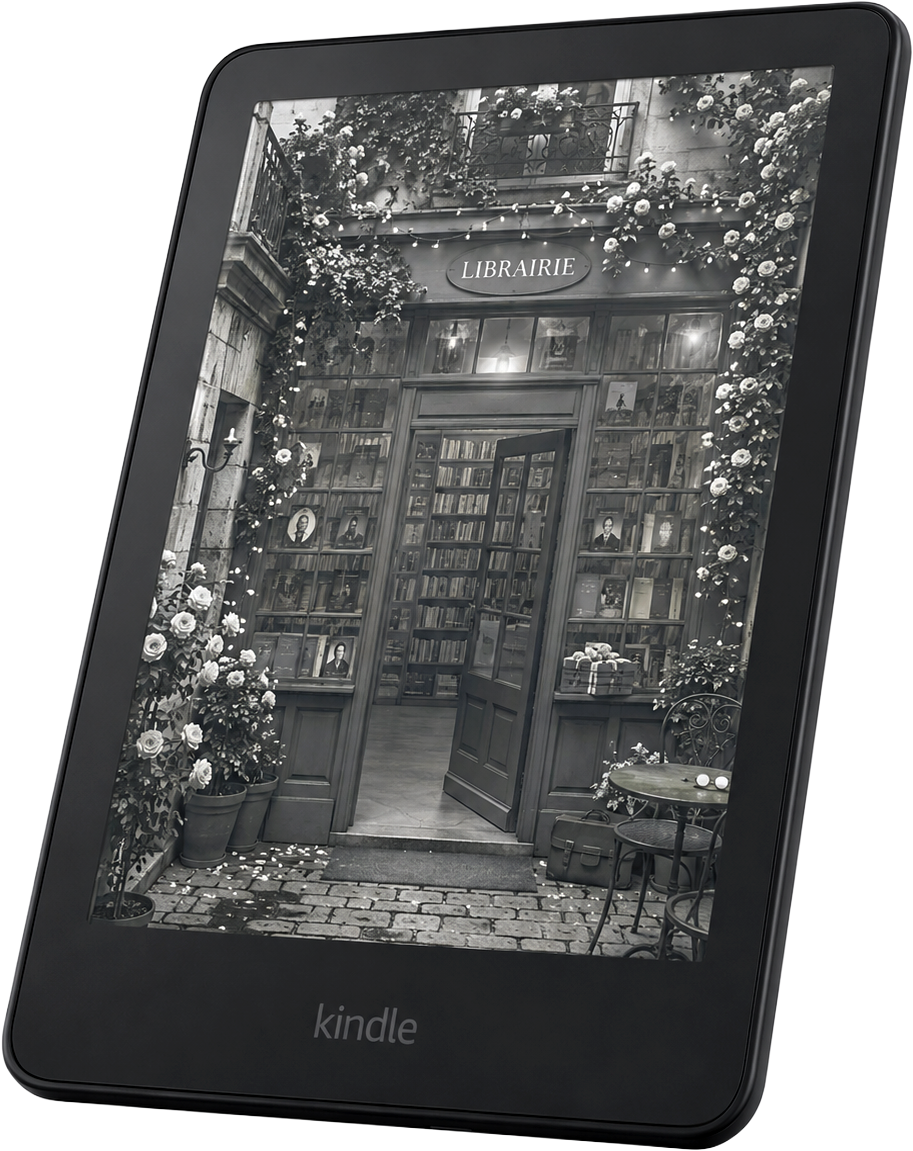
Turn any image into a Kindle‑ready lock screen file.
Make your Kindle more personal: upload a photo, artwork, or design, preview, and download the .epub file.
Make your lock screenNo account. No upload. Your image stays in your browser.
THE GENERATOR
Make your lock screen
1 · UPLOAD AN IMAGE
2 · CHOOSE YOUR KINDLE
Kindle
Kindle Paperwhite
Kindle Oasis
Kindle Scribe
Kindle Colorsoft
Specifications are cross-referenced from reviews and secondary sources.
Not sure which Kindle you have? Check Settings → Device Options on your Kindle, or see our guide to identifying your Kindle.
3 · POSITION YOUR IMAGE
Or drag the image in the preview to reposition it.
LIVE PREVIEW
will appear here
preview
Downloads as my-kindle-lock-screen.epub
INSPIRATION
Find your lock screen style.
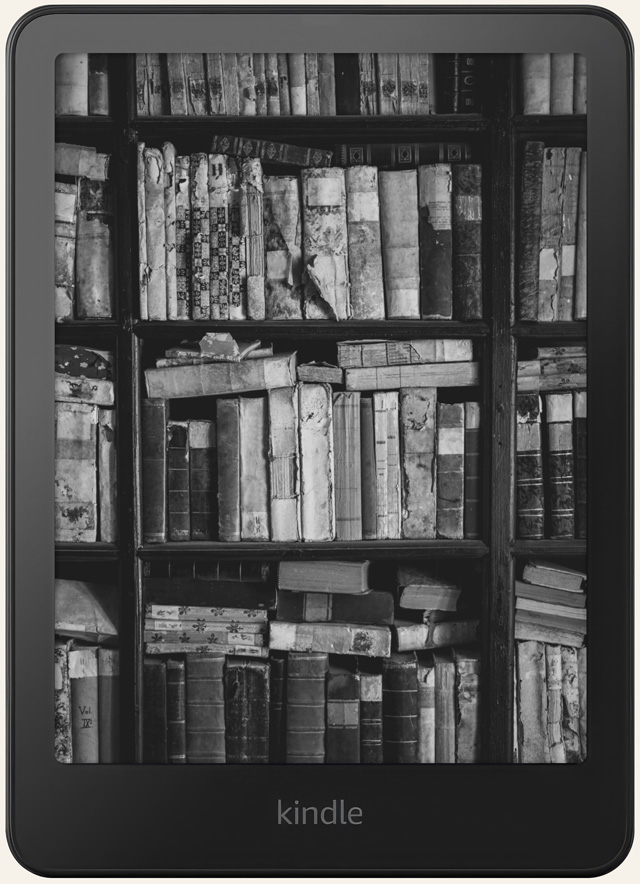
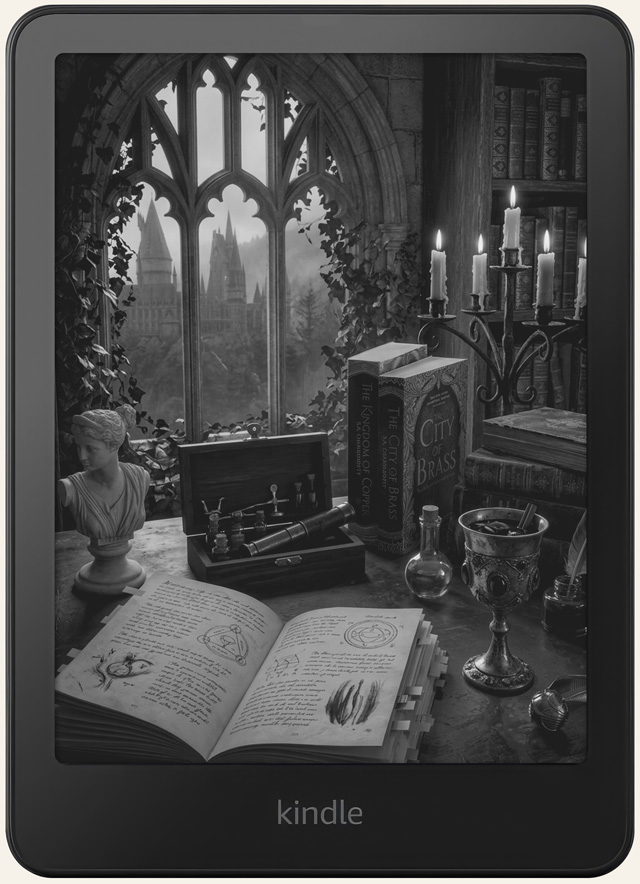
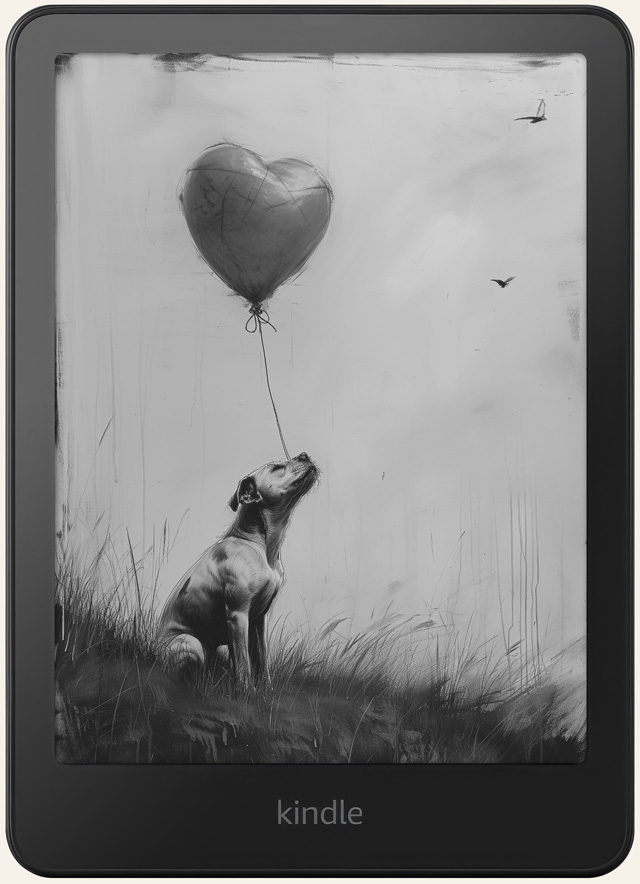
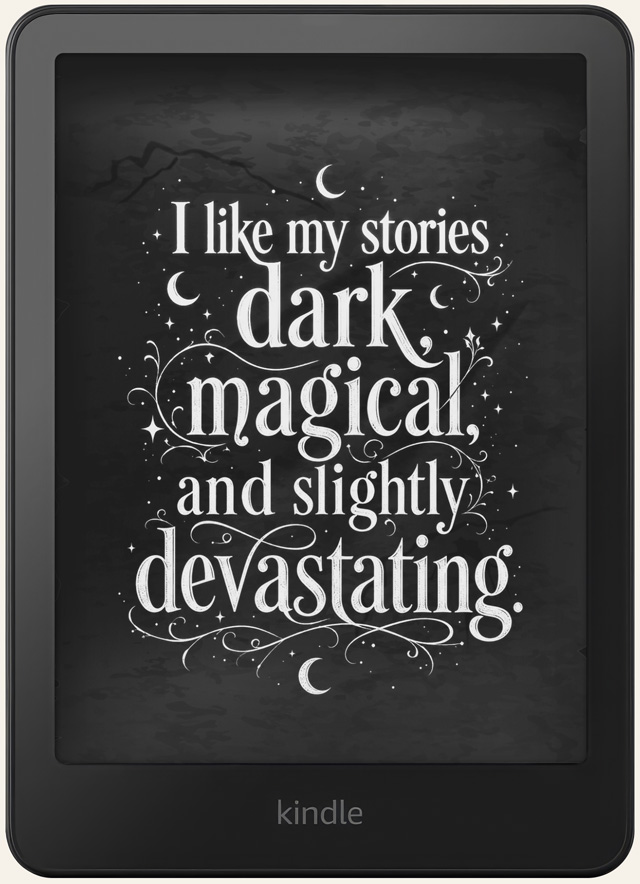
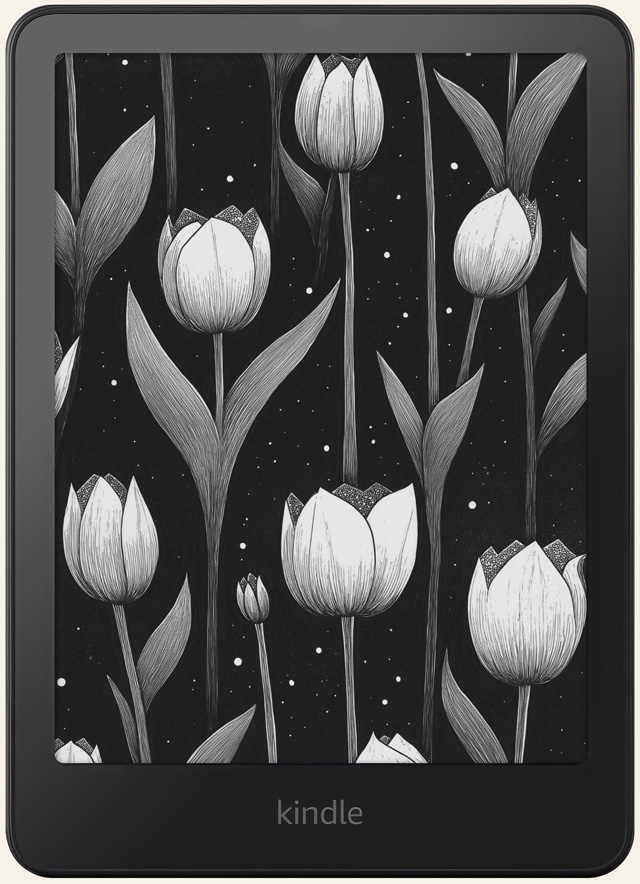
Start with a photo, artwork, quote, or design you love. Here are a few ideas for your Kindle.

HOW IT WORKS
Three steps between you
and a more personal lock screen.
Choose an image
Upload a favorite photo, illustration, or anything you want to see when your Kindle sleeps.
Frame it for your Kindle
We’ll crop it for your Kindle’s screen ratio and export it at the right resolution.
Send it to your Kindle
Download your file, send it with Amazon’s Send to Kindle, then open it once.
Want the full walkthrough, including where to find the setting on your Kindle? See our step-by-step lock screen guide.
COMPATIBILITY
Will this work on my Kindle?
CoverLock relies on Amazon’s Show Covers on Lock Screen feature. Your Kindle needs to:
- Support Show Covers on Lock Screen
- Be running compatible, up-to-date firmware
- Not currently be showing lock-screen ads (Special Offers)
We haven’t verified compatibility model-by-model yet. The device list in the generator controls output size. It doesn’t guarantee your specific Kindle supports this feature. See the full compatibility guide for details by model.
A SMALL BUT IMPORTANT NOTE
How the workaround actually works.
Kindle doesn’t have a normal custom-wallpaper feature. CoverLock works around that using Kindle’s own Show Covers on Lock Screen feature. See how the whole mechanism works, including why your image can get replaced by another book’s cover, on our Kindle book cover page.
Send it with Amazon’s Send to KindleFAQ
Good to know before you begin.
Does Kindle support custom lock screens?
Not natively. CoverLock uses Kindle’s own Show Covers on Lock Screen feature, which displays your image as a book cover.
Will my CoverLock image stay visible while I read another book?
No. Kindle shows the cover of whichever book you opened most recently, so you’ll need to reopen your CoverLock file before your Kindle sleeps again.
Does my Kindle support CoverLock?
It depends on your device and whether Show Covers on Lock Screen is available and turned on. See “Will this work on my Kindle?” above. We haven’t verified every model yet.
Do I need Calibre or Canva?
No. CoverLock creates the file directly in your browser. No extra apps needed.
How do I get the file onto my Kindle?
Download it, then send it to your Kindle with Amazon’s Send to Kindle, and open it once.
Does this work on Kindles with ads?
Kindles with Special Offers may show an ad instead of your image on the lock screen. That’s controlled by Amazon’s ad setting, not by CoverLock.