KINDLE PAPERWHITE LOCK SCREENS
Make a Custom Kindle Paperwhite Lock Screen
Turn any photo, artwork, quote, or design into a Kindle-ready lock screen file sized for your Paperwhite.
Create Your Lock Screen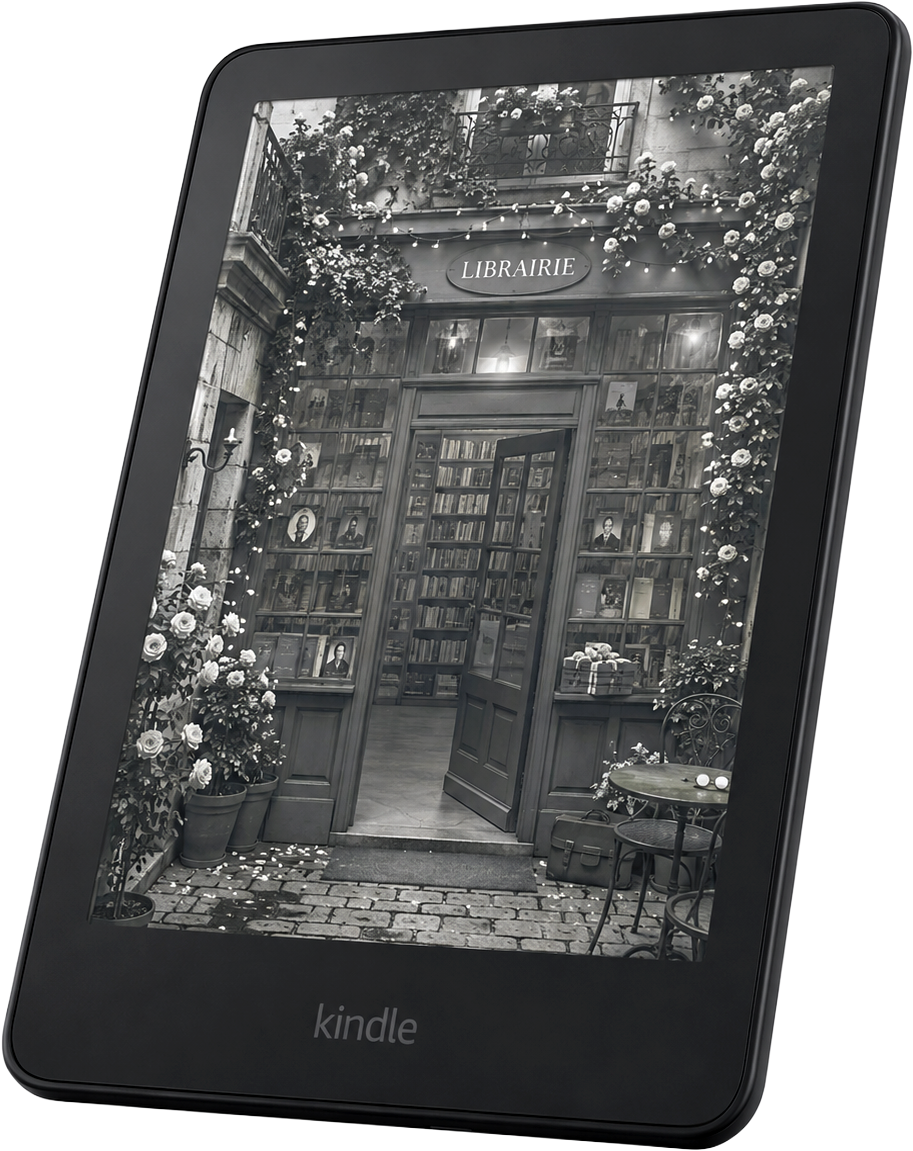
THE GENERATOR
Make your lock screen
1 · UPLOAD AN IMAGE
2 · CHOOSE YOUR KINDLE
Kindle Paperwhite
Specifications are cross-referenced from reviews and secondary sources.
Not sure which Kindle you have? Check Settings → Device Options on your Kindle, or see our guide to identifying your Kindle.
3 · POSITION YOUR IMAGE
Or drag the image in the preview to reposition it.
LIVE PREVIEW
will appear here
preview
Downloads as my-kindle-lock-screen.epub
Which Kindle Paperwhite do you have?
“Paperwhite” isn’t one screen. Amazon has changed the resolution with almost every generation, so CoverLock uses the model you select above to prepare your image at the correct aspect ratio and pixel dimensions.
| Model | Screen | Resolution | PPI |
|---|---|---|---|
| Kindle Paperwhite12th Gen | 7" | 1264 × 1680 | 300 |
| Kindle Paperwhite Signature Edition12th Gen | 7" | 1264 × 1680 | 300 |
| Kindle Paperwhite11th Gen | 6.8" | 1236 × 1648 | 300 |
| Kindle Paperwhite10th Gen | 6" | 1072 × 1448 | 300 |
Not sure which Paperwhite you have? See our guide to identifying your Kindle.
Looking for the newest Paperwhite? View the current Kindle Paperwhite on Amazon
How custom Kindle Paperwhite lock screens work
Kindle Paperwhite doesn’t provide a normal persistent wallpaper feature. Instead, supported devices can display the cover of the most recently opened book using Amazon’s Show Covers on Lock Screen feature. CoverLock creates a small Kindle-ready ebook using your image as that cover. See our guide to how Show Covers on Lock Screen works for more on the feature itself.
- 01
Create it. Upload your image, choose your Paperwhite, and position the crop.
- 02
Send it. Create the Kindle-ready file and send it to your Kindle using Amazon Send to Kindle.
- 03
Open it. Open the CoverLock file on your Kindle and enable Show Covers on Lock Screen if needed.
For the full walkthrough, see our How to Change Your Kindle Lock Screen guide.
Paperwhite lock screen ideas
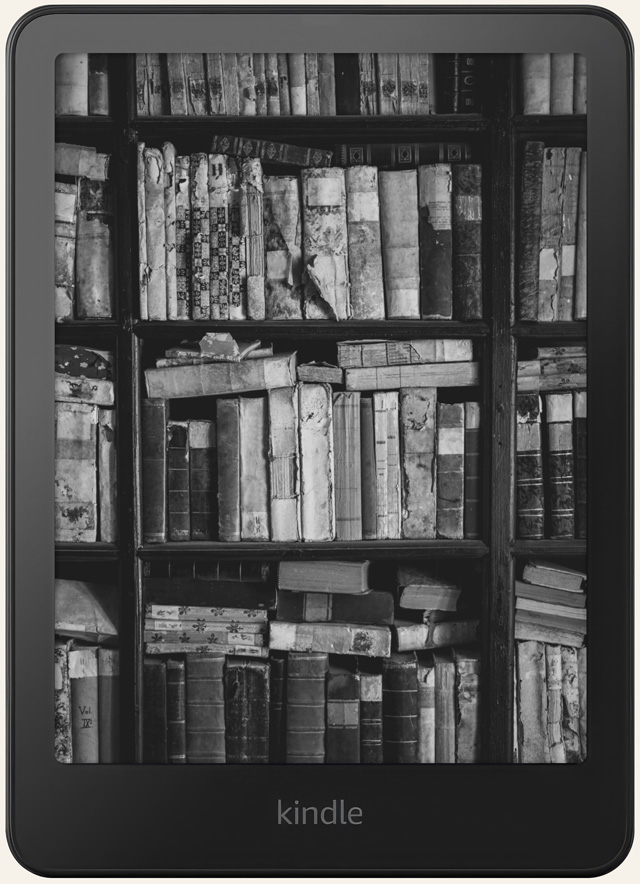
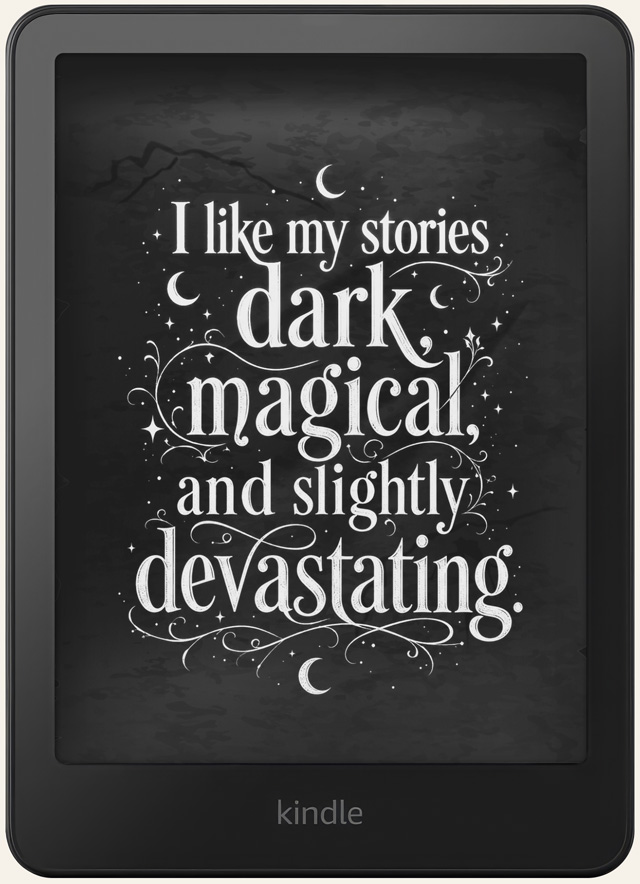
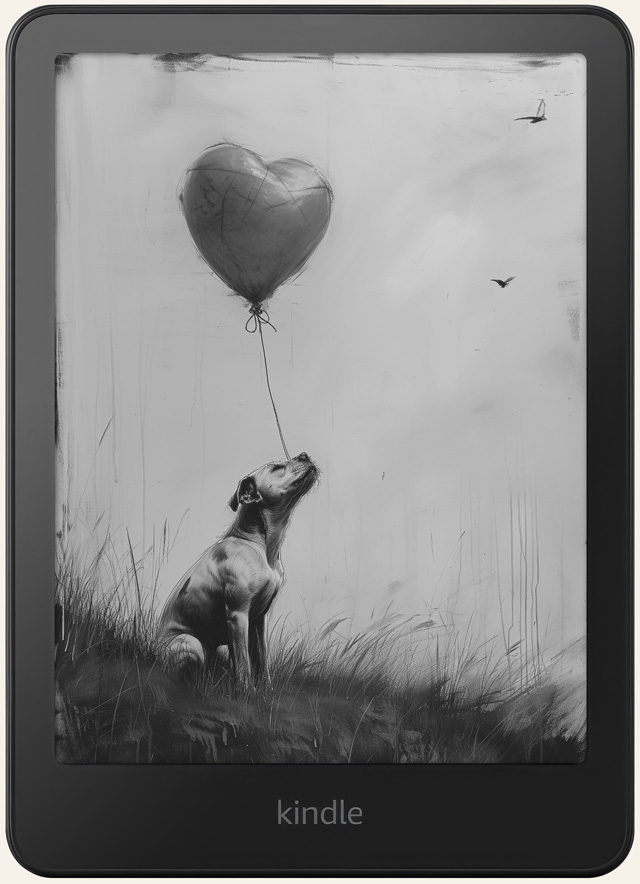
High-contrast photography, illustration, typography, and artwork generally translate well to Paperwhite’s black-and-white e-ink display. Exact rendering varies by image, so it’s worth previewing yours above before you commit to it.
Looking at a new Paperwhite? Here’s the current model. View Kindle Paperwhite on Amazon
Turning on Show Covers on Lock Screen
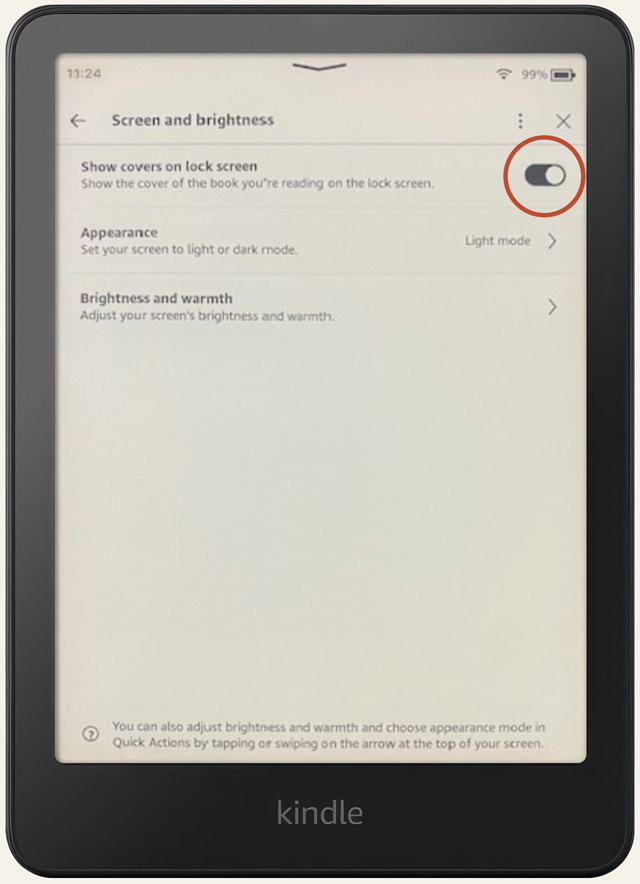
Once the file is on your Paperwhite, open it once. Then, on supported Paperwhites, go to Settings, then Screen and Brightness, then turn on Show Covers on Lock Screen. The exact menu path can vary by firmware version and generation. See our full lock-screen guide for the complete walkthrough.
ONE THING TO KNOW
Why your lock screen can change back
Your custom image is technically the cover of a small ebook. Kindle displays the cover of whichever book you opened most recently, so if you open another book, its cover may replace your CoverLock image. To restore your custom image, reopen the CoverLock file before putting your Kindle to sleep again.
CURRENT PAPERWHITE
Looking for a new Paperwhite?
The current Kindle Paperwhite features a 7-inch, 300 PPI glare-free display and is supported by CoverLock.
View Kindle Paperwhite on AmazonCoverLock may earn a commission from qualifying purchases made through Amazon links.
Common questions
Can I use a custom lock screen on Kindle Paperwhite?
Yes, if your Paperwhite supports Amazon’s Show Covers on Lock Screen feature. CoverLock builds a correctly sized file for your device. Whether your specific Paperwhite displays it depends on that Amazon feature being available and turned on.
What size should a Kindle Paperwhite lock screen be?
It depends on your generation. The current 12th Gen Paperwhite uses 1264 × 1680 pixels at 300 ppi. The 11th Gen uses 1236 × 1648. CoverLock sizes your image automatically once you pick your model, so you don’t need to resize anything yourself.
Does CoverLock work with the 12th Gen Kindle Paperwhite?
Yes. Choose Kindle Paperwhite, 12th Gen from the device list and CoverLock will size your image to its 1264 × 1680, 300 ppi display.
Does CoverLock work with the 11th Gen Kindle Paperwhite?
Yes. Choose the 11th Gen option and CoverLock will size your image to its 1236 × 1648, 300 ppi display.
Why does my custom Kindle lock screen disappear?
Kindle shows the cover of whichever book you opened most recently. If you read something else, reopen your CoverLock file before your Kindle sleeps again to bring your image back.
Can I use a color image on Kindle Paperwhite?
You can upload a color image, but Paperwhite’s display is grayscale e-ink, so it renders in black, white, and gray. High-contrast photos and illustrations tend to hold up best.
Do I need to remove ads to use Show Covers on Lock Screen?
Paperwhites with Special Offers may show an ad on the lock screen instead of your cover. That’s controlled by Amazon’s ad setting, not by CoverLock.